You can reschedule, change spaces, or cancel your own booking without contacting the venue, within the limits the venue sets.
Open your booking
- Straight after booking. The confirmation screen shows where and when, with a map and directions, the venue's visit instructions, and a Need to change something? section. If you booked without paying, or are signed in, you can change the date or cancel right there. After paying as a guest, use the Manage booking link in your confirmation email instead.
- The Manage booking link. Every confirmation email has a Manage booking button. The link itself is the key, so it works even if you booked as a guest without an account. If an old or bookmarked link says it couldn't open your booking, use Find my booking on that page to get a fresh link emailed to you, or sign in if you booked with an account. If the booking has been cancelled, the page says so instead - contact the venue with any questions.
- Signed in. Your upcoming bookings appear as cards at the top of the venue's booking page. Tap one to change or cancel it.
- Your account. Open the account menu in the top right and choose My account. Under Membership & credits you'll see your membership, gift card balance, and any session credits with how many are left, for example "3 of 10 left". Credits only show when you're signed in with the email address they were bought with. See using your membership, bundles and gift vouchers.
Find a booking
If you've lost your confirmation email, you can get your Manage booking links sent again. No account is needed.
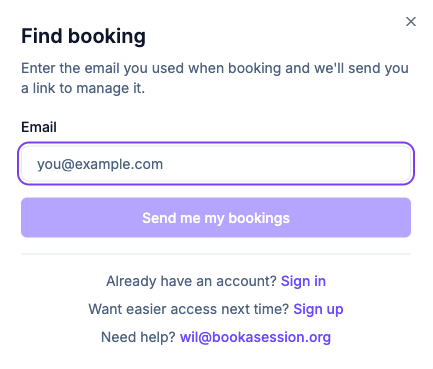
- 1Click Find booking in the header of the venue's booking page, or find an existing booking on the sign-in screen. The venue can also send you a direct link ending in
/find-my-booking. - 2Enter the email address you booked with.
- 3Open the email listing your upcoming bookings, and use any Manage booking link to reschedule, change spaces or cancel.
The email only lists upcoming, confirmed bookings, up to 20. The form shows the same "check your inbox" message whether or not your email matched a booking, so if nothing arrives, the address may not be the one you booked with.
Reschedule, change spaces or cancel
- Reschedule. You're offered other dates of the same session type you booked. To move to a different type of session, ask the venue, who can move you to any session.
- Add spaces. You can add people right up until the session starts, even when it's too late to move or cancel, and you pay for them at the time if needed.
- Reduce spaces or cancel. Paid bookings are refunded to your card automatically, or given as account credit, depending on the venue's cancellation policy.
Change date and Cancel booking are under Need to change something?, with the venue's cut-offs written above them. You get an updated email after every change. If an option is switched off or past the venue's cut-off, the section says so and how to contact the venue instead.
A private hire of a whole session can usually only be changed by the venue, unless the venue has allowed changes on that price. A group booking, such as "bring a friend", can be cancelled or rescheduled online, but its number of spaces can't be changed.
For venues: you set these limits in Settings → Policies and are notified when a customer changes a booking. You can always change or cancel a booking for them from the bookings page.
Common questions
-
I can't see the option to change or cancel. The venue sets how late you can make changes. Past that point, contact the venue and they can change the booking for you.
-
My "find booking" email hasn't arrived. Check your spam folder for the venue's name, and make sure you used the exact email you booked with. If all your bookings have already happened or been cancelled, there's nothing to send.
-
I asked twice but only got one email. An identical resend is skipped so you don't get duplicate copies. The same email can be looked up once a minute and 3 times an hour.
-
No dates come up when I try to move my booking. Only dates of the same session type are offered, and only ones with room. Contact the venue to move to a different session, or cancel and rebook.