When one date of a repeat schedule needs to be different - fewer spaces, a bank-holiday price, a later start, or no session at all - override that date without editing the schedule behind it.
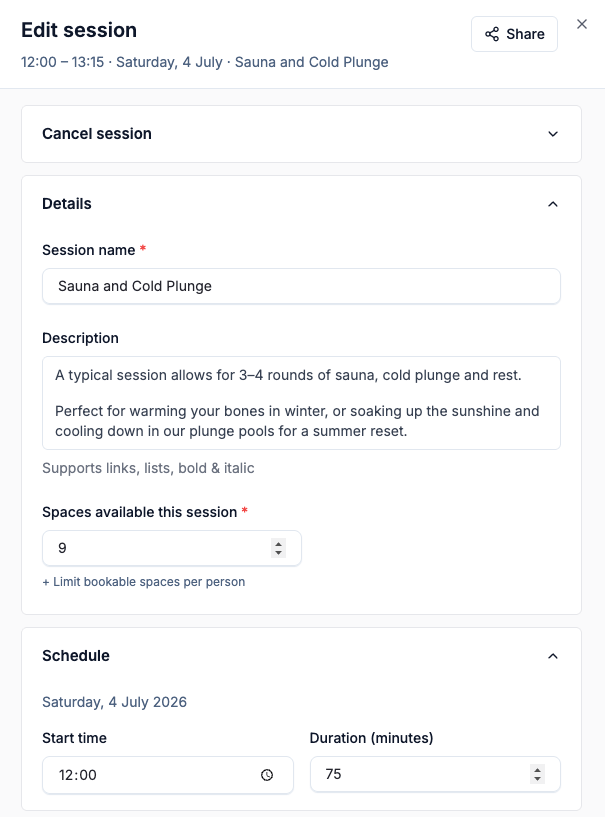
Open one occurrence
- 1Open Bookings to reach the admin calendar, and click the session on the date you want to change.
- 2Select Edit this session (or Edit session for a non-recurring date).
What you can override
Change what's different and select Save; everything else inherits from the session.
- Details - name, description, capacity (the number of spaces), and the maximum spaces one customer can book.
- Schedule - the start time and duration, in minutes, for this date.
- Prices - which price options, memberships, and add-ons show on this date, and the price for each. Use a row's menu to hide, show or re-price it for this date alone.
- Messages - visit instructions for this date's confirmation page and email.
Lowering capacity below what's booked doesn't cancel anyone; the date is just full. Moving a start time doesn't email booked customers - Session warns you, and you contact them yourself.
If you price a date above the session's normal rate
If anyone holds a bundle credit or session gift voucher for it, Prices shows a warning. Credits are spent per space, not per pound, so a credit bought at £12 still covers a £22 date. To charge full price, make the dearer date its own session and leave it out of the bundle under Offers → Bundles.
Choose how far a change reaches
For a repeat schedule, saving asks how widely to apply your change:
- This event only - just this date.
- This and following events - splits the schedule from this date. Time, capacity, and detail changes carry forward; price, membership, and add-on changes stay on this date only.
- All events - opens the full session editor.
One-off events don't show this choice - saving applies straight away.
Hide a single session
Hiding takes one date off sale without cancelling it. To compare it with the other options, see session visibility.
- 1Open the occurrence from the calendar, or from a session's row on Bookings.
- 2Select Hide and stop bookings (or Hide on the Bookings panel) and confirm. Once the session has bookings, or on a phone, it's in the panel's menu (⋮ or Menu).
A hidden session takes no new bookings, even through its share link. Existing bookings stay, nobody is refunded or emailed, and its waiting list pauses. You can still add bookings yourself from Add booking - handy for a private group. To undo it, select Show and reopen bookings (or Show).
Cancel a single occurrence
- 1Open the occurrence from the calendar and expand Cancel session at the top of the form.
- 2Select Cancel session and confirm.
The confirmation shows the bookings, spaces and amount paid at stake - check it, because refunds go out straight away and can't be pulled back. It also offers Hide instead when paid bookings are affected.
Cancelling refunds paid bookings (or gives account credit where the price's cancellation policy uses credit), returns voucher credits and member-included sessions, and sends each customer a cancellation email. Every other date is untouched. You can't cancel a session after its end time.
Reinstate a cancelled occurrence
Open the cancelled session and select Reinstate session to make the date bookable again.
Cancelled customers were already refunded, so they need to rebook, or you can add them back from Add booking.
Common questions
-
A far-future date shows "This date hasn't been created yet" - can I still hide or cancel it? Yes. Dates beyond your booking window aren't created yet, but hiding and cancelling both work. To take a whole day off sale, use closed dates instead.
-
I hid a session and sent someone its link - why can't they book? A hidden session takes no bookings from anyone, link included. Add the booking yourself, show the session again, or set its Visibility to Direct link only if it's meant to be invite-only.
-
Can staff make these changes? Staff can hide, show and cancel a single date. Changing a date's details, prices or time, and reinstating a cancelled date, need an admin. See team roles.