Once you've connected Stripe, customers can pay for bookings, memberships, bundles and gift vouchers by card, Apple Pay or Google Pay. Every payment goes through your own Stripe account and is settled to your bank. Which methods show at checkout is decided in your Stripe dashboard, with nothing to configure in Session.
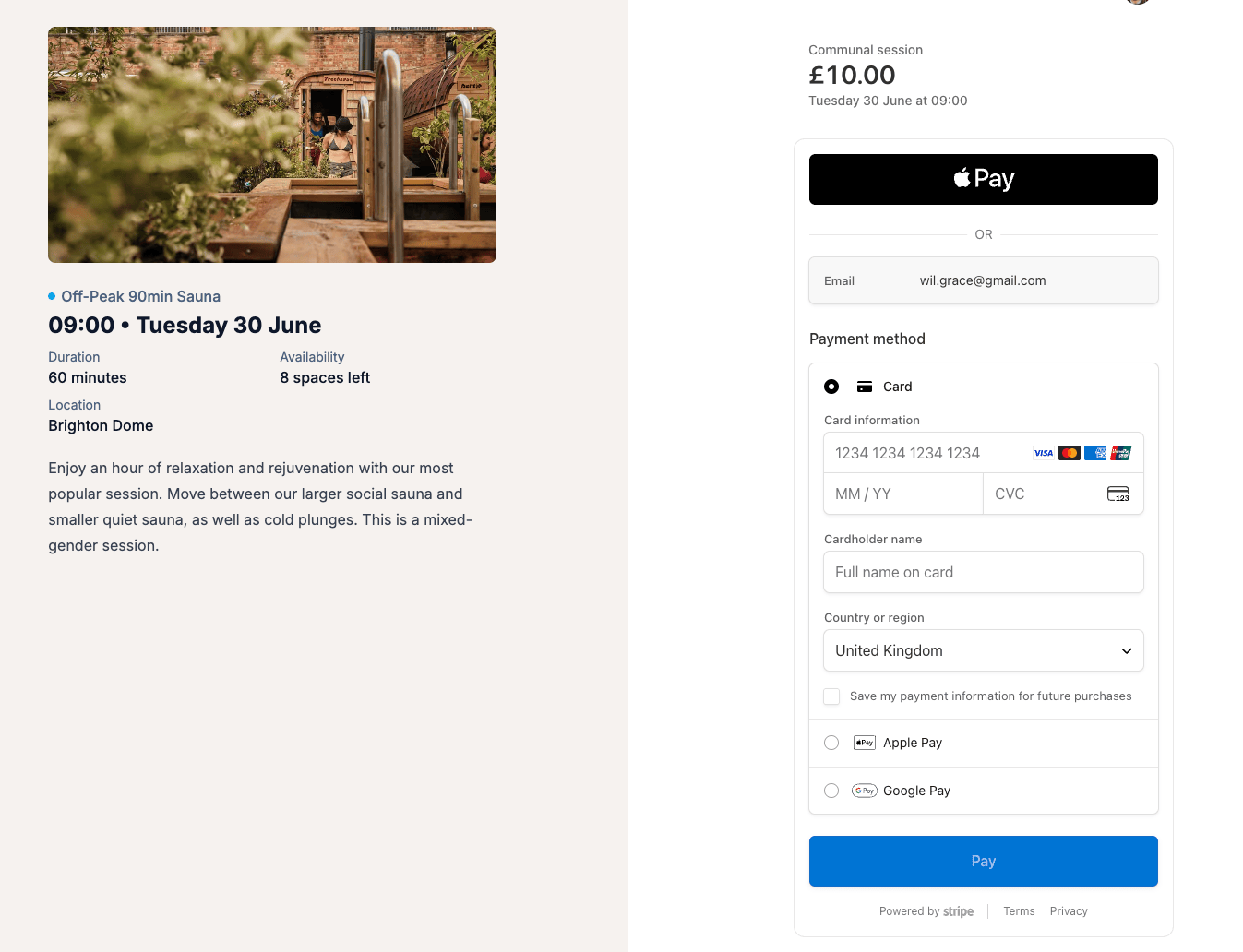
What customers can pay with
- Card. Credit and debit cards are on by default once Stripe is connected.
- Apple Pay. Shown on Apple devices in Safari (iPhone, iPad and Mac). It rides on the card setting.
- Google Pay. Shown on Android and in Chrome. It also rides on the card setting.
Apple Pay and Google Pay only appear when the customer's device and browser support them and they have a card saved to that wallet. Otherwise they see the card form, so they can always pay by card.
How methods are controlled
The checkout page is hosted by Stripe and offers every method you've switched on in your Stripe account.
- 1Open your Stripe dashboard and go to Settings → Payment methods.
- 2Turn methods on or off (Apple Pay and Google Pay are grouped with card) and save. The change applies to your Session checkout straight away.
Outside the UK, Stripe also offers local methods like Swish, SEPA, iDEAL, Bancontact and Klarna. Turn them on in Settings → Payment methods and they appear at checkout when a payment is eligible - mostly a matter of currency (Swish needs SEK, for example).
Apple Pay setup
Apple Pay needs the website verified with Apple, and Session does this for you: when your Stripe account can first take payments (charges enabled), Session registers the Session domain with Apple on your account. There are no files to upload.
Where payments land
Whichever method a customer uses, the money goes to your own Stripe account and is paid out to your bank on Stripe's normal schedule. You see every payment, payout and balance in your Stripe dashboard. For fees, see connecting Stripe; for money sent back, see refunds.
When customers are charged
Session takes payment in full at the moment of booking, as one charge. It never places an authorisation hold to capture or release later, so customers never see a pending amount lingering on their card - unlike systems that "authorise now, capture later".
Common questions
-
Why don't I see an Apple Pay button at checkout? It only shows on Apple devices in Safari when the customer has a card in their Apple Wallet. It's almost never a setup problem on your side.
-
Can I accept cash or a card-machine payment? Yes - record those as offline or walk-in payments.
-
Customers can't pay at all. Check the Stripe section on Settings → Company. If charges aren't enabled yet, Stripe is still verifying your account and no online payment will work until it's done - see connecting Stripe.
-
I turned on a local method like Swish, but it's not showing. Check your account currency under Settings → Company matches the method (Swish needs SEK). Some methods only appear on certain devices or in certain countries.
-
Can members pay by Swish? No. Swish covers one-off payments like bookings, but Stripe doesn't support it for recurring memberships.