When a session is full, the booking page swaps the checkout for a "Join waiting list" form. When a space opens up, Session emails everyone on the list whose requested number of spaces now fits. There's nothing to switch on: the waiting list appears automatically on every full session.
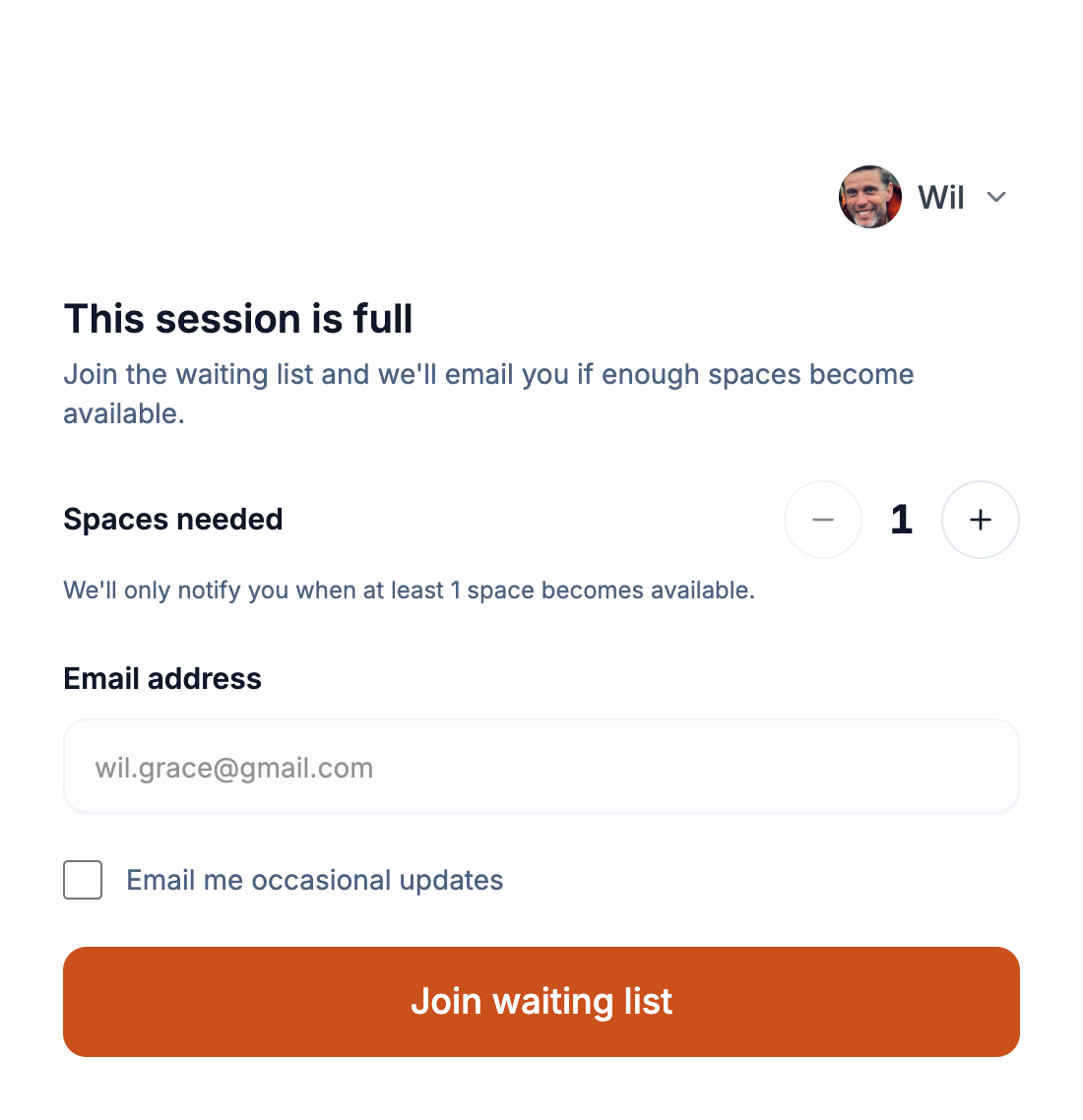
Joining the list doesn't hold a space. The email is an invitation to book, and the first to check out gets the space.
What customers fill in
- Spaces needed - from 1 up to the session's capacity. Someone after 3 spaces is only emailed when at least 3 are free.
- Name and email - filled in already for signed-in customers.
- Phone - shown only if you collect phone numbers at checkout.
- Marketing opt-in - shown only if you collect marketing consent and haven't asked this customer before.
A customer who's already on the list sees a confirmation instead of the form, so they can't join twice.
When customers get notified
Session re-checks real availability before emailing. The list is notified when:
- A booking on the session is cancelled or refunded.
- A customer reduces the number of spaces on their booking.
- A booking is rescheduled to a different date, freeing space on the original.
Everyone whose requested spaces now fit is emailed at once with the waiting list email ("A space has opened up for ..."), with a button to the booking page. Customise it under Email → Automated emails (the "Waiting list" template).
When the waiting list doesn't email
- Hidden or closed dates. While a date is hidden or closed, freed spaces email nobody. When you show or reopen it, anyone who now fits is emailed straight away.
- Private hire. A date bought out by a private hire shows "Not available" with no waiting list.
- Dates not open yet. A date beyond your booking window shows "Not open for booking yet", with no waiting list.
- Archived sessions. An archived session can't be booked, so its remaining dates never email the list.
- Past sessions. A session that has ended never triggers waiting list emails, even if you edit its bookings afterwards.
Spaces are counted the same way the booking page counts them, so a date where you've changed the capacity uses that date's own number: lowering it emails nobody, and raising it frees the extra spaces for the list.
See where demand is building
On the session. On Bookings, a full session with people waiting is tagged "3 waiting" instead of "Full". Open it and click the "3 waiting" button in its heading to see each person's name, email, spaces requested and join time, oldest first. Each row is badged Waiting or Notified - Notified means they've been emailed but haven't booked yet, so the space is still available. You can also add a booking for someone yourself, or raise the session's capacity.
Across a session type. Reports has a Waitlist column in the session-type table showing total spaces requested over your date range. Hover it for how many customers are waiting, how many were notified, and how many dates had a queue.
Date by date. Reports → Export → Session attendance gives one row per date with Waiting list people and Waiting list spaces. The same file is in your full data export.
The session heading counts people; the Reports column counts spaces requested; the CSV has both. All three include people notified who haven't booked.
Common questions
-
Can I turn the waiting list off? No. It appears automatically on any full session, and there's no setting to enable or disable it.
-
Why don't waiting list entries show in my bookings list? The admin bookings list shows confirmed bookings only. See who's waiting from the "waiting" button on the session in Bookings.
-
Someone was emailed but the space had gone when they tried to book - why? Everyone who fits is emailed at once, and the first to check out gets the space. The others stay on the list, marked Notified.
-
Can I book someone in off the waiting list myself? Yes, add a booking for them as normal. Everyone eligible is emailed the moment a space opens, so it may already be taken.