A price option is a named price customers choose at checkout. Each session can offer several, and each price type sets how much of the session it takes up - a single space, a fixed group block, or the whole room. They work alongside memberships, bundles and vouchers.
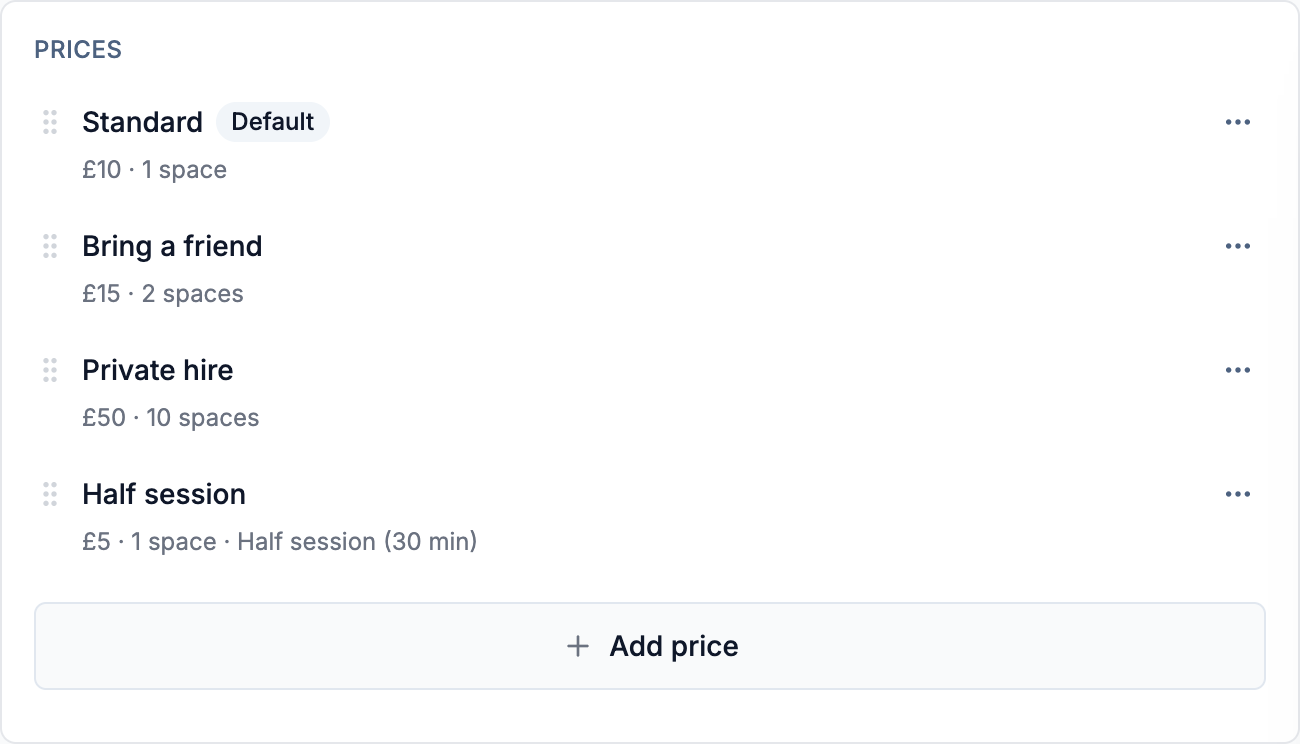
Create a price option
- 1Open the session on the Sessions page, find the Prices panel and select Add a price. Choose Create new, or Copy from a session to reuse prices from elsewhere.
- 2Give it a Name customers see at checkout, such as "Standard", "Concession" or "Private hire", and set the Price (
0for a free option). - 3Choose a Price type (see price types) and leave Duration as full session unless you offer part-session pricing. Save.
A new price is added to this session only. To offer it elsewhere, use Add a price → Copy from a session on the other session. Each copy is independent.
Price types
- Standard - one space per ticket. Customers can buy several at once, up to any per-booking limit you set.
- Group - a fixed block of spaces sold together at one price, such as a "bring a friend" rate. The block is from 2 up to one less than the session's capacity, and Group is only offered when a session has 3 or more spaces. Customers can cancel or reschedule under your policy but can't change the number of spaces.
- Private - reserves the whole session, so no one else can book, and the communal prices disappear for that session. By default only you and your staff can change or cancel a private booking.
Group and private prices carry a Group or Private label in the price list. The type can't be changed later - remove the price and add a new one. See group bookings and private hire.
The default price
One standard, full-session price on each session is its default price - turn on Use as the default price when adding or editing it. Member discounts and included sessions are priced from the default. A price option has no member rate of its own; member pricing is set on the membership.
Override a price for one date
To charge a different amount on a single date, such as a holiday rate, set a per-date price with an instance override. The per-date price wins for that date; every other date keeps the session's price.
Past bookings keep the name and amount they were bought at, so editing a price only affects new bookings and your reports and CSV exports stay accurate.
Make a session free
Give it one price set to £0 rather than turning all its prices off, so customers get a confirmation and you get a name on your check-in list.
If every price is off and the session has a membership on it, Session treats it as a members-only session: members can book, and everyone else sees no book button. The Prices panel shows an amber note when a session is in that state.
What customers see
Customers see each enabled price as a row with its name, price and a quantity control; group and private prices show how much of the session they book. Prices show in your venue's currency, with a live conversion hint for international customers. Before a time is picked, the session page shows a Price line with your cheapest enabled option - "From £10" when there are several rates.
Common questions
-
Why isn't my price showing on the booking page? A price only shows on the session it was created or copied onto. If it's there but hidden on a date, check that a group or private price still fits that date's remaining capacity.
-
How do I run a discount instead of a separate price? For a code customers redeem at checkout, create a discount voucher.
-
How can I tell which prices book more than one space? The line beneath each price in the session's price list states how many spaces it takes.
-
Why does my session page say "From £5" when my standard price is £10? The Price line shows the cheapest option a customer could book, such as a part-session or off-peak rate. Remove or raise any option you don't want quoted.