Help

How shared-capacity sessions work

Sell spaces in one shared session instead of 1:1 appointments, so many customers book the same time slot up to the capacity you set.

5 min read

Session is built around shared-capacity sessions: many customers book into the same time slot, each taking one of a fixed number of spaces. This is the difference between a sauna and a calendar app built for appointments - your room holds several people at once, so a single 6pm session should take several bookings, not just one.

Set the capacity once and Session does the rest: it fills each session up to the limit, prevents overbooking, and shows customers how many spaces are left. Capacity flows through your repeat schedules and one-off dates, and you can override it for any single session when plans change.
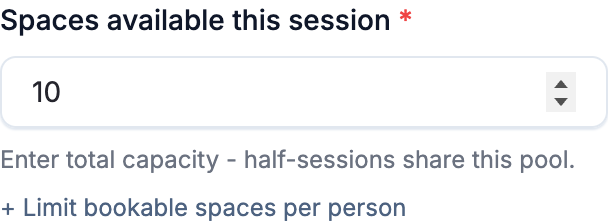
The session editor with the Capacity field set, showing how many spaces a single session holds
Set capacity per session in the session editor.

Spaces, not appointments

A traditional appointment booking gives one customer the whole slot. A Session session sells spaces in a shared slot instead.

  • One session at a set time can hold many bookings, up to its capacity.
  • Each booking takes one or more spaces, and the session stays open until the spaces run out.
  • When the last space is booked, the session shows as full and stops taking new bookings automatically.

So a 10-space session at 6pm could be ten people who each booked one space, or one person who booked four and others who filled the rest - any mix that adds up to the capacity.

Note

We use "spaces" everywhere a customer or admin sees it. A space is one place in the room - the unit your capacity is measured in.

Set capacity per session

Capacity is a number you set on each session: the most bookings it can take before it's full. Set it to the real number of people your room comfortably holds.

  1. 1
    Open the Sessions page and create or edit a session.
  2. 2
    Set the Capacity field to the number of spaces the room holds.
  3. 3
    Set the duration and prices as usual, then save.

Every booking into that session counts against the capacity. As bookings come in, the remaining count drops, and customers always see how many spaces are left.

The capacity hierarchy

Capacity can be set at more than one level, so you can keep a default and still adjust individual dates. Session resolves it in this order, most specific first:

  1. Single-session override - a capacity set on one specific session date wins over everything else.
  2. Schedule capacity - the capacity on a repeat schedule applies to every session that schedule generates.
  3. Session default - the capacity on the session itself, used when nothing more specific is set.

In practice you set the capacity once on the session (or its schedule) and forget about it. The override is there for the odd day when fewer or more spaces are available.

Override a single session

Need to drop capacity for one date - say a maintenance day, or a smaller room? Change it on that one session without touching the rest of your schedule. See override a single session for the full walkthrough.

Tip

Lowering a single session's capacity below its current bookings won't cancel anyone. Existing bookings stay; the session just stops taking new ones until there's room again.

Overbooking prevention

Session checks capacity at the moment of booking, so two customers can't claim the last space at once. When a session is full it shows as sold out on the booking page and stops taking new bookings - no manual gatekeeping required.

If you want to keep capturing demand once a session sells out, turn on a waiting list so customers can be notified the moment a space frees up.

Group and private bookings

Shared capacity also covers the two ends of the spectrum:

  • Group bookings let one customer book several spaces in a shared session - they bring friends, but others can still book the remaining spaces.
  • Private sessions let one customer book out the whole session, taking every space so no one else can join.

Both are priced as a single unit rather than per space, and both are capped to the session's real capacity, so you never sell more spaces than the room holds.

Limit spaces per booking

By default a customer can book as many spaces as are available. If you'd rather cap how many one person can take - to keep sessions open to more people - set a maximum spaces per booking on the session. A single multi-space price like private hire is exempt from the cap, since it's sold as one unit.

How customers see it

On the booking page, each session shows its remaining spaces and a quantity stepper so a customer can choose how many to book. Pairs naturally with part-session pricing, where shorter and longer bookings share the same capacity across the session. For what your customers can do after they book, see how customers manage their own bookings.

Common questions

  1. Can two customers book the same session? Yes - that's the point. Any number of customers can book the same session up to its capacity. Each takes one or more spaces.

  2. What happens when a session is full? It shows as sold out and stops taking bookings automatically. Add a waiting list to keep capturing demand.

  3. Can one customer book several spaces? Yes. They use the quantity stepper at checkout, up to the spaces remaining (and any per-booking limit you've set). For a whole-session booking, see private sessions.

  4. Can I change capacity for just one date? Yes. Override the capacity on that single session - see override a single session. The rest of your schedule is unaffected.

  5. Does lowering capacity cancel existing bookings? No. Existing bookings are kept. A lower capacity only limits new bookings.

Next, build a repeat schedule, override a single session, or browse all sessions and scheduling articles.