Your booking page installs on any phone or tablet as an app, with your icon and name, straight from the browser - no app store, nothing to publish. There are two apps: the customer app (your booking page) and the admin app for you and your staff.
Install the customer app
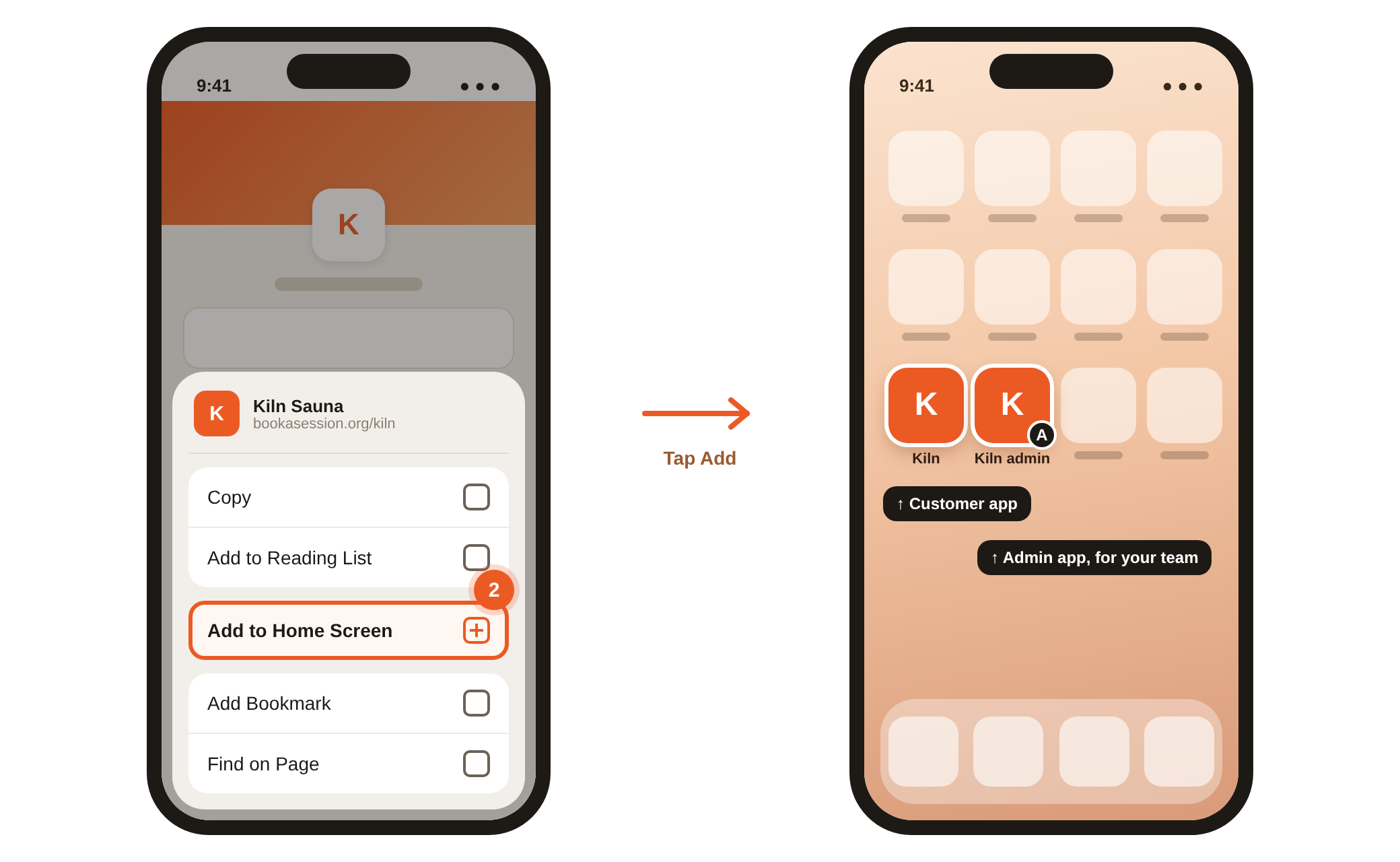
On iPhone or iPad (Safari):
- 1Open your booking page in Safari.
- 2Tap Share, then scroll down and tap Add to Home Screen.
- 3Check the name, then tap Add. The app opens in its own window, without Safari's address bar.
On Android (Chrome): open your booking page, tap the three-dot menu, then Add to Home screen, or Install app if that appears.
Put these steps in a welcome email or on your QR poster so regulars book in two taps.
Install the admin app
On a phone or tablet, open the Session menu (top-left) and tap Install the app at the bottom. On a tablet held landscape, it's the phone icon in the strip down the left. Android installs it straight away; iPhone shows you the two taps to finish in Safari, because Apple only allows adding to the home screen from Safari's Share menu.
You can also follow the customer steps from any admin page while signed in, such as Bookings.
The admin app:
- has its own badged icon, so it sits beside the customer app rather than replacing it,
- opens straight to Bookings, ready for check-in at the door,
- rotates with your tablet for a front desk. The customer app stays portrait.
Change the icon and name
The icon is made from your Icon or logo in design and branding - upload a square image at least 512 pixels wide so it looks sharp. The name under it is your Short name (up to 12 characters) from Links on Booking page, or your venue name if that's empty; the admin app adds "admin". Changes reach apps already installed within about a day.
Common questions
-
Do customers need to download anything from an app store? No. The app is your booking page, so it's always up to date and there's nothing to approve or publish.
-
An installed app is stuck loading or shows an old version. Open
bookasession.org/sw-resetin a browser. It clears the saved app data so the app loads fresh - the quickest fix on iPhone, where there's no "clear cache" for an installed app. -
I don't see Add to Home Screen on iPhone. Make sure you're in Safari, not an in-app browser like Instagram's. Open the page in Safari first, then use Share.
-
Can staff install the admin app? Yes. Anyone who can sign in to your admin can install it; they see what their role allows.